
Simple arithmetic in Minecraft: dividing the screen into parts
Experience the nostalgic fun of couch co-op gaming with Minecraft! This guide details how to set up split-screen gameplay on your Xbox One or other compatible consoles. Gather your friends, prepare the snacks, and let's get started!
Important Considerations:
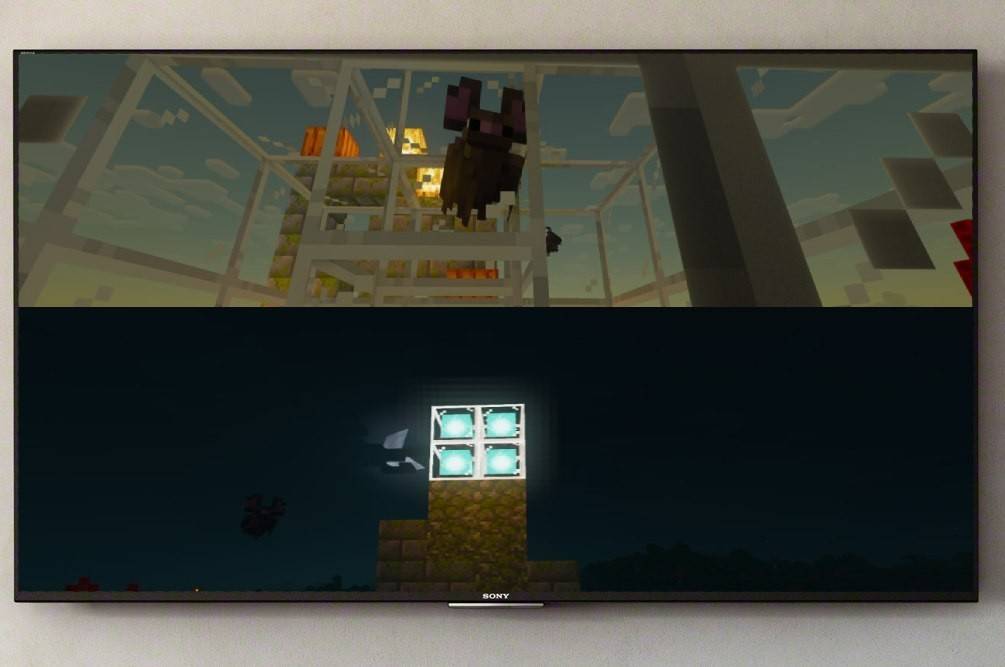 Image: ensigame.com
Minecraft split-screen is exclusively available on consoles (Xbox, PlayStation, Nintendo Switch). PC users won't find this feature. Ensure your TV or monitor supports HD (720p) resolution, and that your console is compatible. HDMI connection automatically adjusts resolution; VGA may require manual adjustment in your console's settings.
Local Split-Screen Gameplay (Up to 4 Players):
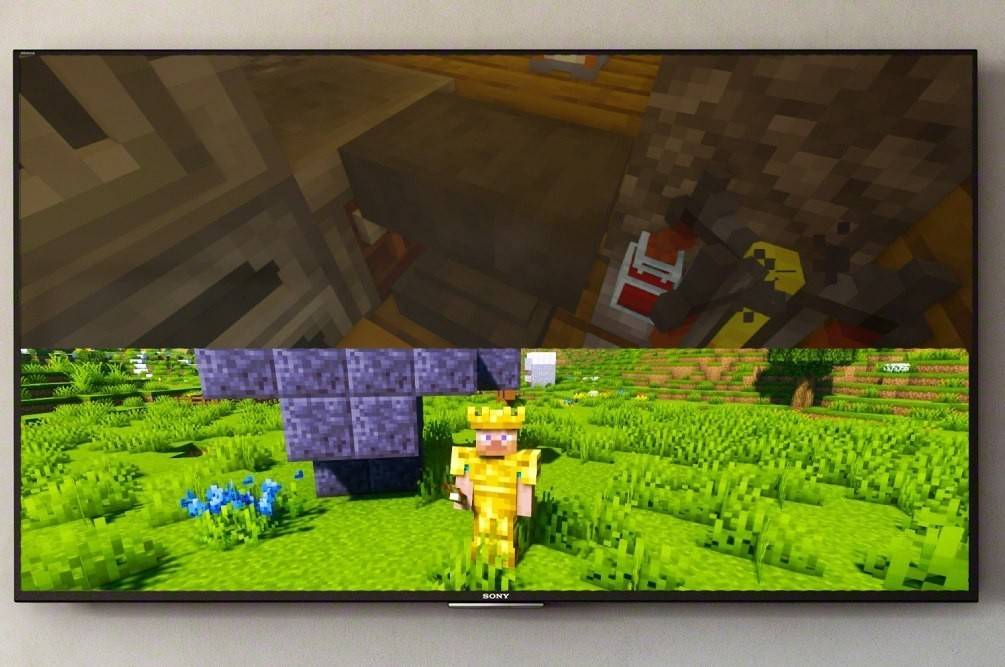 Image: ensigame.com
- Connect your console: Use an HDMI cable for optimal results.
- Launch Minecraft: Create a new world or load a saved game. Crucially, disable the multiplayer option in the game settings.
- Configure your world: Choose difficulty, game mode, and world settings.
- Start the game: Press the start button.
- Add players: Once in the game, press the button to add players (typically "Options" on PlayStation or "Start" on Xbox). Press it twice to access this function.
- Player login: Each player logs into their respective account.
- Enjoy split-screen: The screen will automatically divide into sections (2-4 players).
 Image: ensigame.com
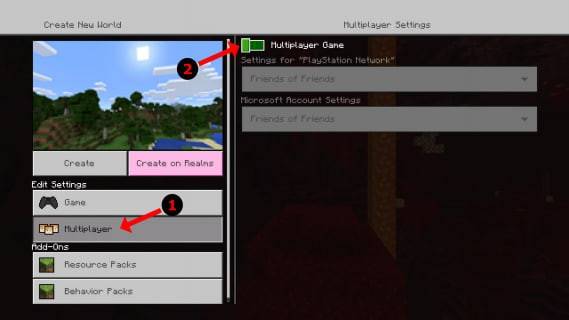 Image: alphr.com
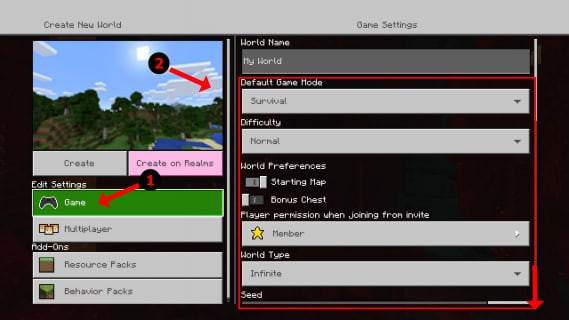 Image: alphr.com
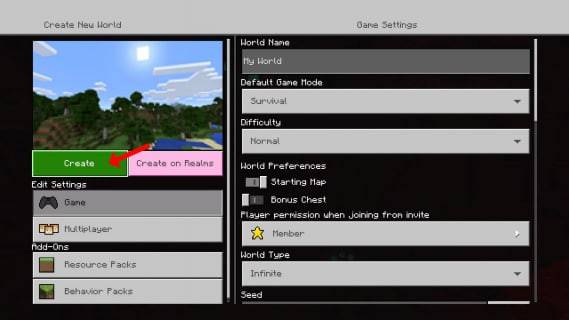 Image: alphr.com
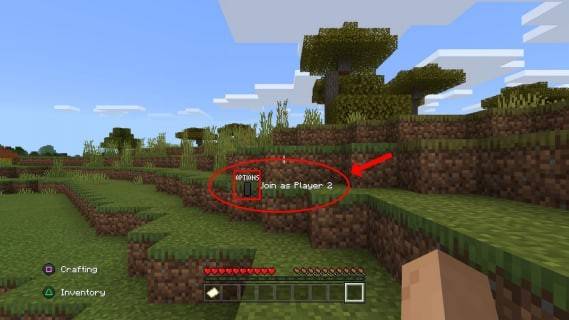 Image: alphr.com
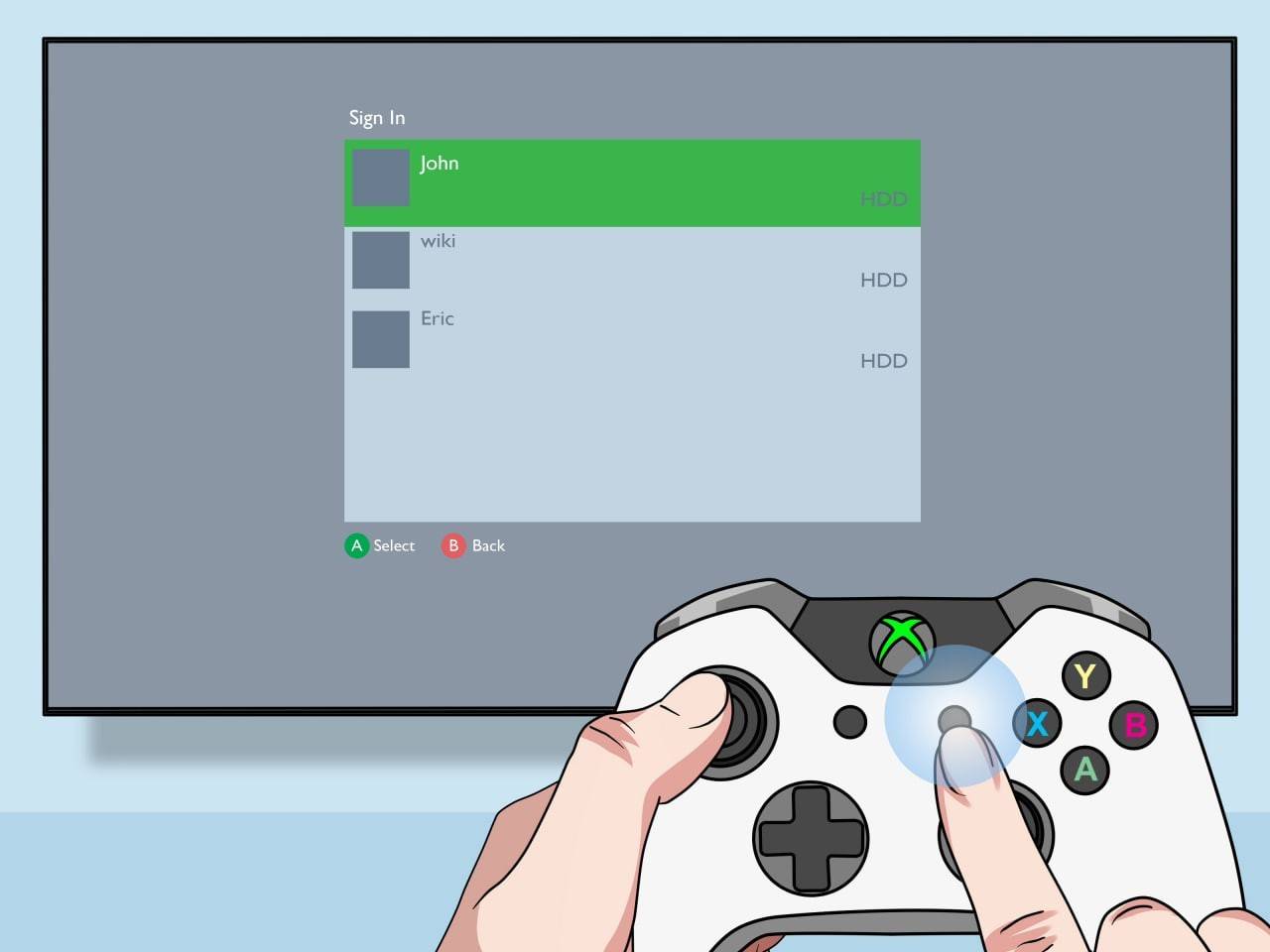 Image: pt.wikihow.com
Online Multiplayer with Local Split-Screen:
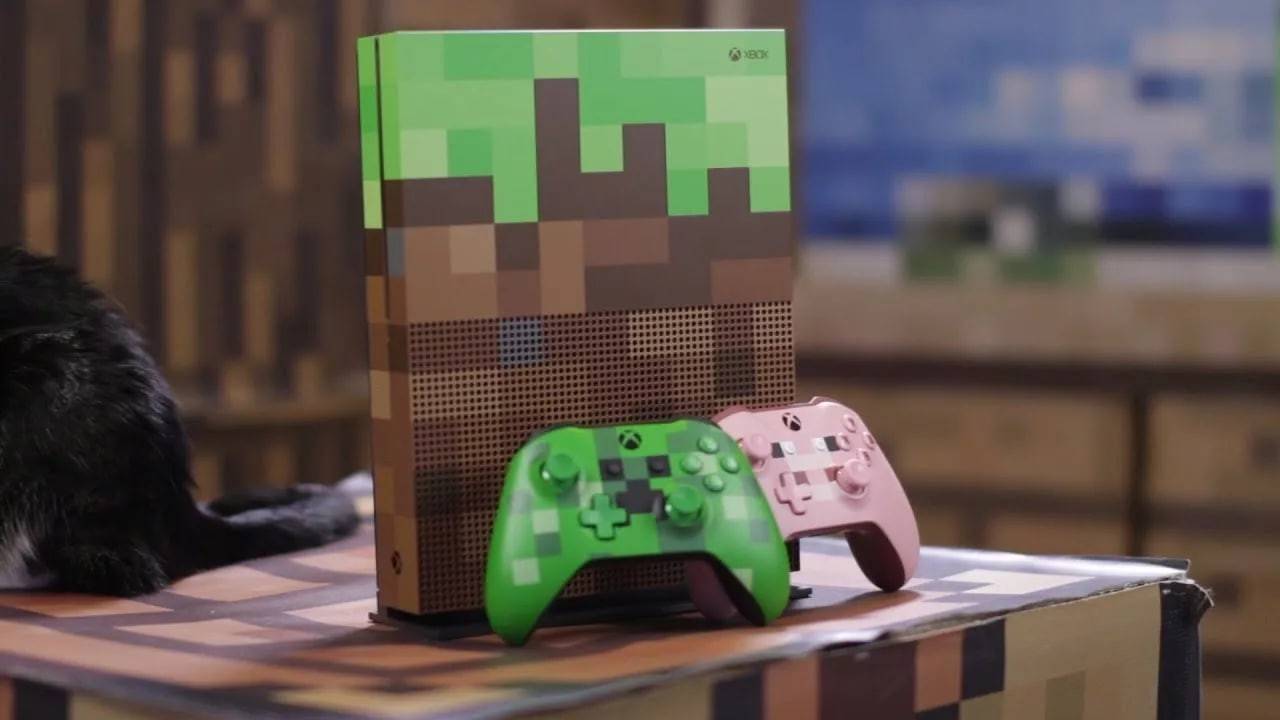 Image: youtube.com
While you can't directly split-screen with online players, you can combine local split-screen with online multiplayer. Follow steps 1-5 above, but enable the multiplayer option before starting the game. Then, invite your online friends to join your session.
Minecraft's split-screen functionality enhances the cooperative experience. Enjoy the game with friends!
-
 Pokémon TCG Pocket marks its first anniversary by relaunching its interactive pop-up experience. The Pokémon Company International will host the event at London's Outernet from November 8–9, 2025.Following a highly successful debut last year, the celAuthor : Zoey Dec 18,2025
 -
 Rockstar has finally released the second Grand Theft Auto 6 trailer, and fans are immediately asking: what's the song in the latest GTA 6 trailer?While the two-and-a-half-minute video highlights the action and romance of Vice City, it also reminds viAuthor : Andrew Dec 17,2025





- Spring Valley Farm Game: January 2025 Redeem Codes
- WWE Superstars Join Call of Duty Warzone: Mobile Roster
- Midnight Girl is a minimalist point-and-click adventure set in Paris in the 60s, now open for pre-orders on mobile
- Mobile Legends: Bang Bang – Best Lukas Build
- "Grand Outlaws Unleashes Chaos and Crime on Android Soft Launch"
- Ultimate Guide to Dead Rails Challenges [Alpha]