 Download
Design custom cross stitch patterns with ease.
Cross Stitch Pattern Creator
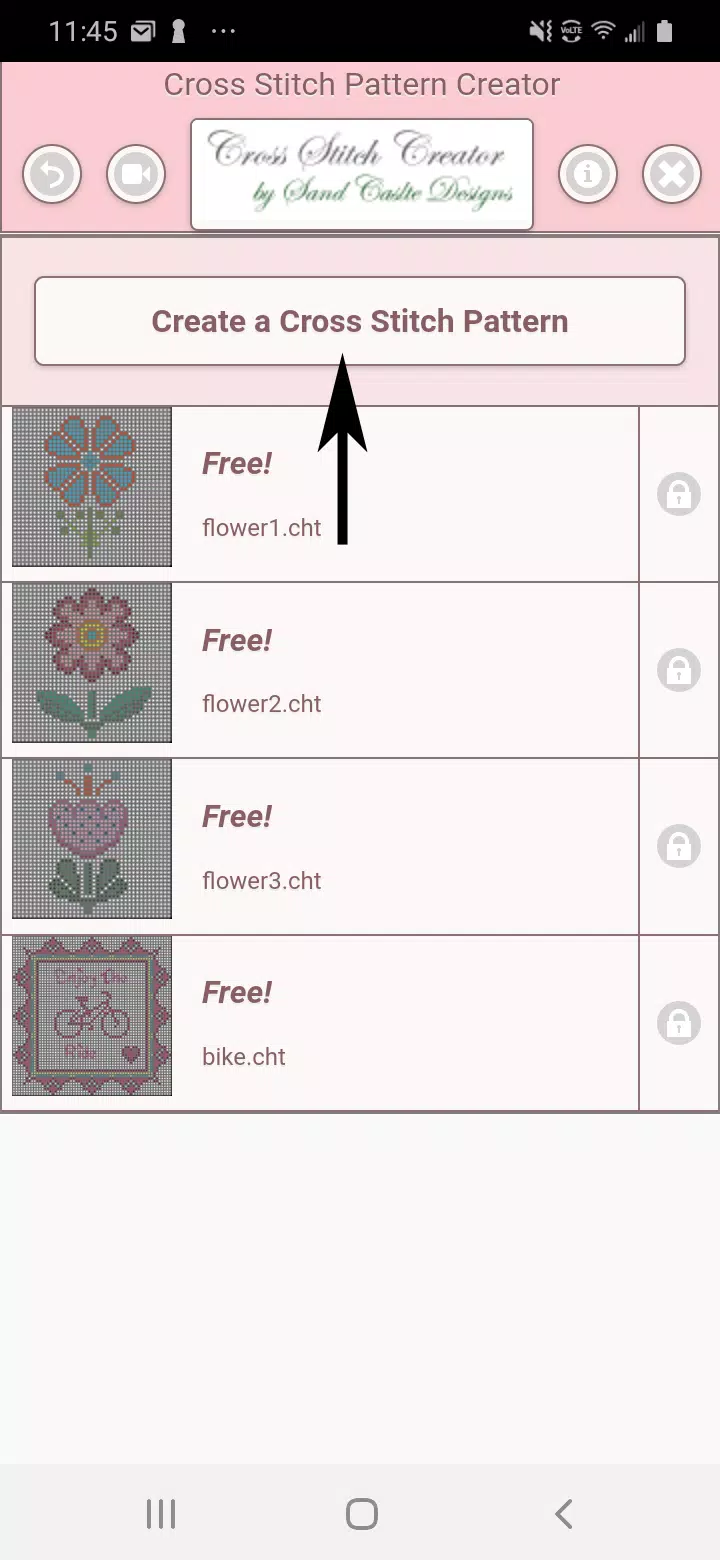
Includes 4 ready-to-use patterns. Free to download. Activation costs $2.99.
For optimal experience, we recommend using a tablet due to typical pattern dimensions.
Start designing unique cross stitch patterns using the Cross Stitch Pattern Creator
To begin creating patterns, click the Create a Cross Stitch Pattern button.
The Cross Stitch Pattern Editor will open. Fill individual squares using DMC floss colors.
You have the flexibility to add custom colors as needed.
Getting started - Use the pencil tool to mark squares in your pattern. The eraser tool removes markings from your design.
Choose from over 80 decorative stamps and borders to enhance your cross stitch pattern.
The button bar contains these tools from left to right:
DMC Floss Color button - choose your preferred floss color
Save button - stores your pattern
Pencil button - marks squares on your pattern
Eraser button - removes filled squares and backstitch lines
Backstitch button - First choose a color, then use this tool to add backstitch lines
Backstitch move button - Select and drag backstitches to new positions
Backstitch move stitch end - Select a backstitch to reveal blue endpoints, then reposition either end
Stamps button - miniature cross stitch designs to decorate your pattern
Borders button - decorative borders that automatically frame your pattern
Dropper button - sample colors from your pattern for consistent color matching
Bucket button - flood selected areas with your chosen color
Bucket+ button - replaces existing colors with your current selection
Undo button - reverses your most recent changes
Redo button - restores changes you previously undid
Selection box button - define pattern areas for editing operations
Cut button - Select an area first, then remove it from your pattern
Copy button - Select an area first, then duplicate it to clipboard
Paste button - Insert copied elements, then position them as desired
Rotate button - rotate selected areas or entire patterns
Flip right/left button - mirror selected areas or complete patterns horizontally
Flip top/bottom button - mirror selected areas or complete patterns vertically
Zoom in button - enlarge pattern view
Zoom out button - reduce pattern view
Symbols button - shows unique symbols representing each color value
Picture button - convert device images into stitchable patterns
Social media button - share creations via email, messaging, or social platforms
Resize bars - located at the pattern's bottom right corner for adjusting dimensions
Option settings - customize grid colors, switch between Solid and X fill styles,
toggle row/column counter visibility
Instruction page - shows DMC colors used and finished sizes for various
Aida cloth counts
Finished Product page - previews stitched results and allows fabric
color adjustments